Axo Gridline Property Defaults
In the Project Environment dialog, in [library or project] > Document Production > Axo Gridline Property Defaults, the project administrator can create 'Axo Gridline Property Defaults' configuration objects. The purpose of these objects is to provide common setups for grids that designers insert into axonometric drawing views in Plant Modeller documents. Each project should have at least one such configuration object to eliminate the need for designers to set up each grid manually.
Creating axonometric gridline property defaults
To provide default settings for grid lines in axonometric views, create an 'Axo Gridline Property Defaults' configuration object in the library database and approve the configuration for use in relevant projects.
Prerequisites
-
At least one Annotation Property Defaults configuration for the visual styling of grid lines. X/Y lines and Z lines can use different configurations.
Do the following:
-
In the Project Environment dialog, browse to [library] > Document Production > Axo Gridline Property Defaults and select New > Axo Gridline Property Defaults. The Edit Object Attributes dialog opens.
-
Enter a descriptive name and, optionally, a description for the configuration, then click OK. The Grid Line Properties dialog opens.
-
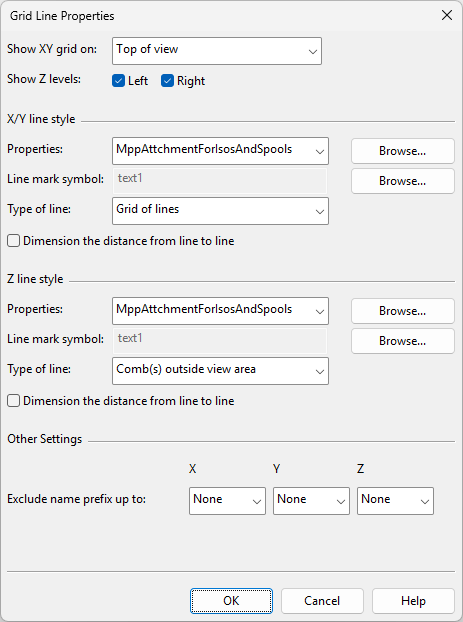
Define the grid line properties.
 Show/hide details
-
Show XY grid on
-
Top of view – Select this option to draw XY lines at the top of the drawing view.
-
Top of view, closest Z-level – Select this option to draw XY lines at the highest Z-level inside view limits.
-
Bottom of view – Select this option to draw XY lines at the bottom of the drawing view.
-
Bottom of view, closest Z-level – Select this option to draw XY lines at the lowest Z-level inside view limits.
-
-
Show Z levels – Select whether to show Z-levels on the right and/or left side of the drawing view.
X/Y line style, Z line style
-
Properties – Select the Annotation Property Defaults to use for this grid. The annotation properties define what the grid lines (Line Properties), the grid line names (Text Properties, Symbol Properties), and the line-to-line dimensions (Dimension Properties) look like.
-
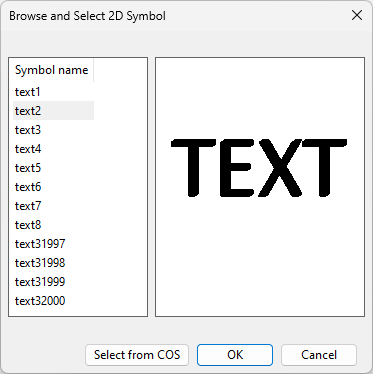
Line mark symbol – Select the 2D Symbol to use for displaying the names of the grid lines.

You can select one of the predefined 2D symbols or a custom symbol that has been stored in COS.
-
Type of line
-
Grid of lines – Select this option to display the grid as lines that extend across the view.
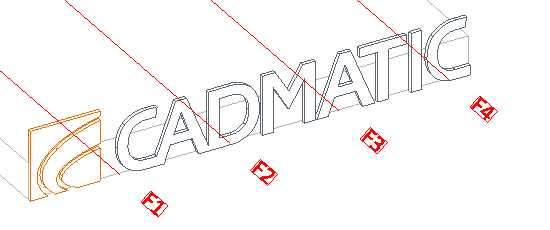
-
Comb(s) outside view area – Select this option to display comb-type reference line markings on the sides of the view.
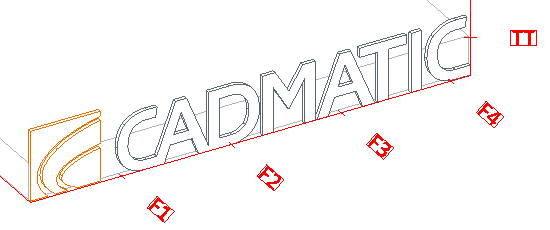
-
Line labels on outside – Select this option to only display a short line and the reference line's name for Z-direction reference lines.
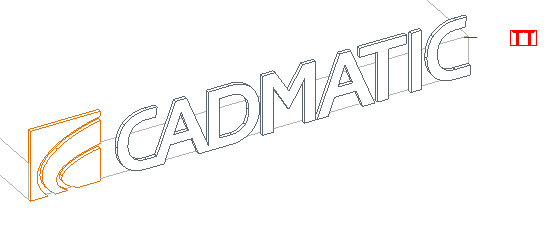
-
-
Dimension the distance from line to line – Select this option to display the dimensions between the grid lines, on the same side where the line names are displayed.
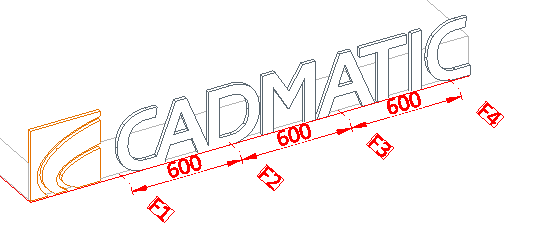
Other Settings
-
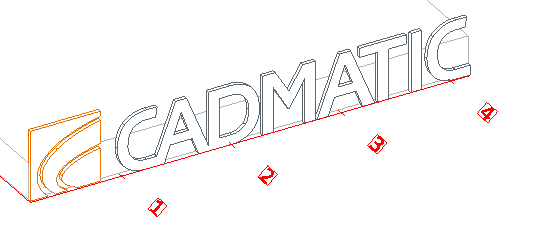
Exclude name prefix up to – You can use this setting to remove an unnecessary naming pattern from the beginning of reference line names, up to and including the first space character or a custom string. For example, setting this to Other: F would remove everything up to and including the F character, as shown below.
-
-
Click OK. The configuration object is now stored in the library.
-
Right-click the configuration object and approve it for use in the project.
Note: If the approval is later removed, any documents that have taken the configuration into use will continue to use it.
Selecting axonometric gridline property defaults for drawing views
In the document editor, designers insert grid lines into drawing views with the Grid lines tool. The Grid Line Properties dialog has a field for selecting the gridline configuration to use.